Adobe Podcast
Adobe Podcast uses the power of AI to make recording and editing podcasts easy!
Login Instructions
- Click the button above or go to podcast.adobe.com (works best in Chrome browser)
- Click Sign In
- Log in with your Microsoft 365 credentials (@students.cobbk12.org)
- Scroll down and click Studio or Record a Podcast
Features
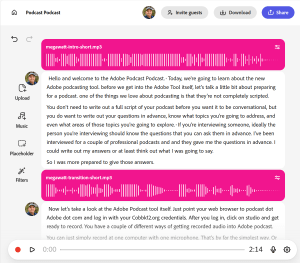
- Record and edit in a web browser–no software installation required
- Easily cut, copy, and paste words and phrases using the transcript that is automatically generated when you record.
- Use Adobe’s speech enhancement filter to remove background noise and echo
- Invite guests to log in and record remotely from their own computers
- Add intro and transition music from Adobe’s royalty-free collection.
- Adobe Podcast can even transcribe in French, German, Italian, Spanish, Portuguese! After logging in, click on your account avatar in the top right corner to change the language.
Recording Options
- Adobe Podcast can record from a single computer using the built-in microphone. For recordings with only one or two speakers sitting in front of a laptop, this works great.
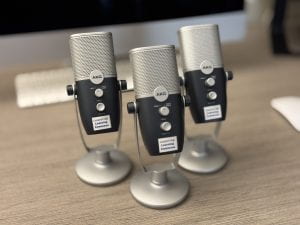
- For groups with more than two speakers (in the same room), you can check out a microphone from the learning commons, place it in the center of the group, and record from all sides.
- Adobe Podcast also has “remote recording,” which allows a host to record multiple participants at once, each using their own devices in other locations.
- Finally, you upload audio recorded in other devices and use it in Adobe Podcast.
TIP: If you want to use audio or video recorded on your phone in Adobe Podcast, use the OneDrive mobile app to upload content to your school Microsoft 365 account.
TROUBLESHOOTING SOUND ISSUES WITH STUDENT LAPTOP:
- Make sure the mic is not muted.
- Lenovo: Press F4 to mute/unmute. Look for the symbol on the screen to see the status.
- Dell: If the LED on the F4 key is on, the mic is muted. Press FN+F4 to unmute.
- Close any apps or other browser tabs that might be using the microphone, including Windows Settings.
- We’ve seen mics stop working when students have too many tabs open. Close Edge entirely, and make sure Chrome doesn’t have excessive tabs open.
- After closing browser tabs and apps, restart the computer.
- Make sure updates are installed, both Windows and Dell/Lenovo firmware updates: https://www.campbellcommons.com/laptophelp/