Installing Software with Company Portal
Students and teachers can install software to their CCSD laptops using Company Portal! Dozens of applications are available, including these:
- Lockdown browsers for AP & Dual Enrollment
- Minecraft Education
- Blender
- AutoCAD
- Audacity
- Java JDK and Dr. Java
- Adobe Express and Photoshop Express
- Inkscape
- VLC video player
- TI Connect
*Students need to download BOTH the Bluebook App (Company Portal OR Collegeboard website) and the AP Lockdown Browser App (Company Portal) in order to use Bluebook!
**If a student’s school laptop is reimaged, the student must repeat the process of installing any software added previously from Company Portal.
Here’s how it works:
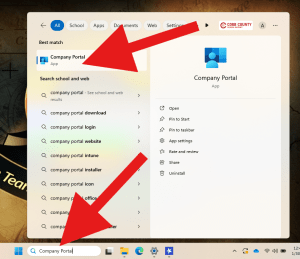
On your taskbar, click on the search bar.
Search for “Company Portal” and open it.
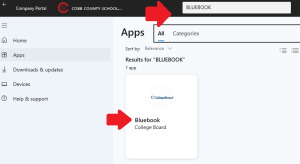
In Company Portal, use the search bar at the top to find your application. You can search for specific programs like “Minecraft” or “Blender,” for a publisher like “Adobe” or “Autodesk,” or just enter a keyword like “browser” or “3D.” You can also just browse!
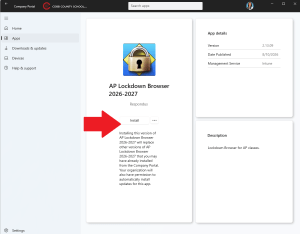
Click on the icon for the application you want, then click “Install”