NoodleTools Expert | Part 2: Gathering Sources
NoodleTools Sources Screen
Learn
You collect and manage the citations for your research sources on the NoodleTools Sources screen. Here’s how to get there:
- Log in to NoodleTools
- Open a Project
- Click on Sources
Here’s an overview of what you find there: Sources Screen Explained (PDF)
There are four main ways to add sources to your NoodleTools project:
- Manual entry
- Direct import from a database (e.g., JSTOR, EBSCO, Gale)
- Copy & paste a preformatted citation
- Import print books via search
Manually Add a Source Citation
Learn
- Open the project and navigate to the Sources screen
- Click the (+New Source) button in the top right corner
- On the “Where is it?” menu, choose the option that best fits your source:
- Database: Online resources accessed through a school or library account (GALILEO, Cobb Digital Library, etc.)
- Website: Online resources available to anyone
- Print or in-hand: Physical media like print books
- Viewed/heard live: Live broadcasts, in-person interviews and the like
- On the “What is it?” menu, choose the option that best fits your source. If your source is a website, this will often just choose “web page.”
- NoodleTools will give you a form to submit all the needed information for the source. Just fill in the form with all the information available from your source. Here are some tips:
- Avoid errors by copying and pasting as much of the information as you can.
- When you click into each field, look for the blue info (i) icon. Click on it for more details about what to put in that field and how to format it.
- Not all fields must be filled in, but fill in as much as you can. (If your source has been republished, reprinted, or translated, it’s especially important to capture these details.)
- After filling in the form, click Save
More info: How to create and edit a source citation
Practice
- Open this web page:
- Follow the instructions in this video to add a citation to your NoodleTools Project:
Directly Import a Citation from a Database
Several of our research databases allow directly import a citation from the database into your NoodleTools project! These include JSTOR, most Gale databases in Cobb Digital Library, and most EBSCO databases in GALILEO.
Learn
The general process goes like this:
- Log in to your NoodleTools account and open project to the sources page.
- In another browser tab, open an article in a compatible database.
- Click the “Cite” (or “Citation”) button for the article
- Under the export option, select Noodletools
- In the new (import) tab, confirm the correct project is selected and click “Import.”
- When you see the green text confirming the import, close the import tab.
- Click back to the Noodletools sources tab and refresh to confirm that the source was added.
For more information:
- How to import a source citation from JSTOR
- How to import a source reference from a Gale database
- How to import a source citation from an EBSCO database
Copy & Paste a Preformatted Citation
Learn
Not every research database has the option to directly export citations into NoodleTools, but pretty much all of them will generate citations that can be copied and pasted into NoodleTools. Here’s how:
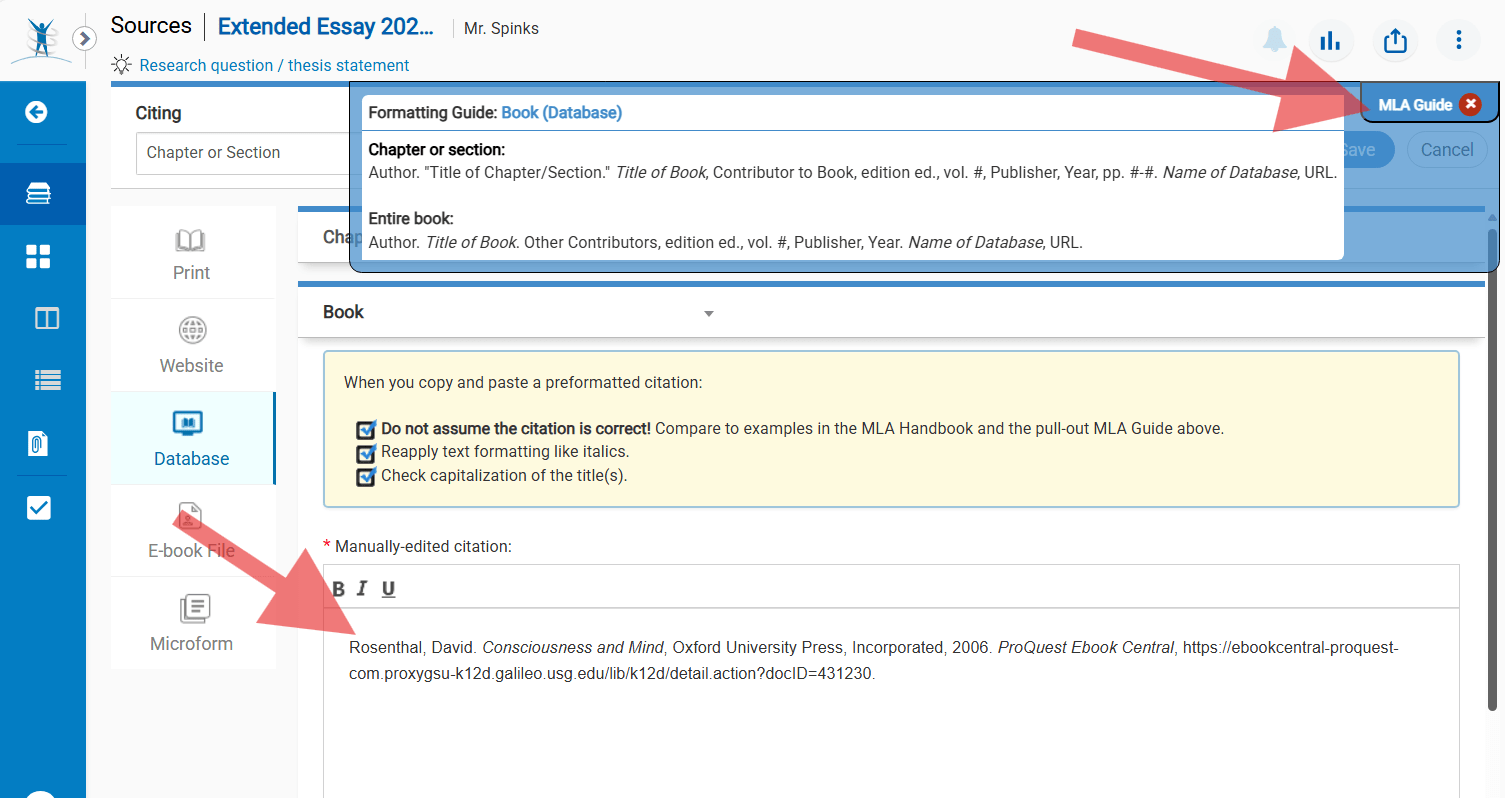
- After opening an article, book, or chapter in a database, click the “Cite” or “Citation” button in the toolbar or menu. Sometimes this will just be a quotation mark icon.
- Look for the citation style (MLA, APA, etc.) that matches the one you are using in your project. Highlight and copy it.
- Open your sources list in NoodleTools, and click the (+New Source) button.
- Select “Database” from the Where is it? menu.
- Select the type of material you are citing (journal, book, etc.)
- At the top right, click “Copy & paste a citation”
- Paste the citation into the text field below the yellow instruction box.
- Click on the “MLA Guide” tab in the top right to open the citation guide for your source. Compare what you pasted in with the correct format and make any necessary corrections. (See note below.)
- Close the MLA Guide tab and click “Save.”
Note: If you are citing a ProQuest ebook book with different authors for each chapter, you will need to manually add the chapter author and chapter title to the citation. If you are citing multiple chapters from such a book, create separate source citation entries for each chapter you cite.
Import Print Books via Search
Learn
Citations for print books can be imported by searching for title, author, or ISBN. The process is similar for all three, but ISBN is the most accurate:
NOTE: If you are adding a source citation for a novel or other popular work that has been re-printed or translated multiple times, be sure to include the correct edition, publisher, and other details, otherwise the page numbers in your in-text citations will be worthless to your reader.
More on Using NoodleTools Sources
How to add and view source attachments
How to export and print source citations (Works Cited, References, Bibliography, etc.)
How to change formatting options like the page header and source list title