NoodleTools Expert | Part 4: Organizing Your Argument
Use the unique organizational tools in Noodletools to tag, sort, categorize, and compile all the information you’ve collected and see how it all fits together. You can even create an outline for your project to make sure it flows logically and where you might need to gather more supporting research.
Organizing Notes in Tabletop View
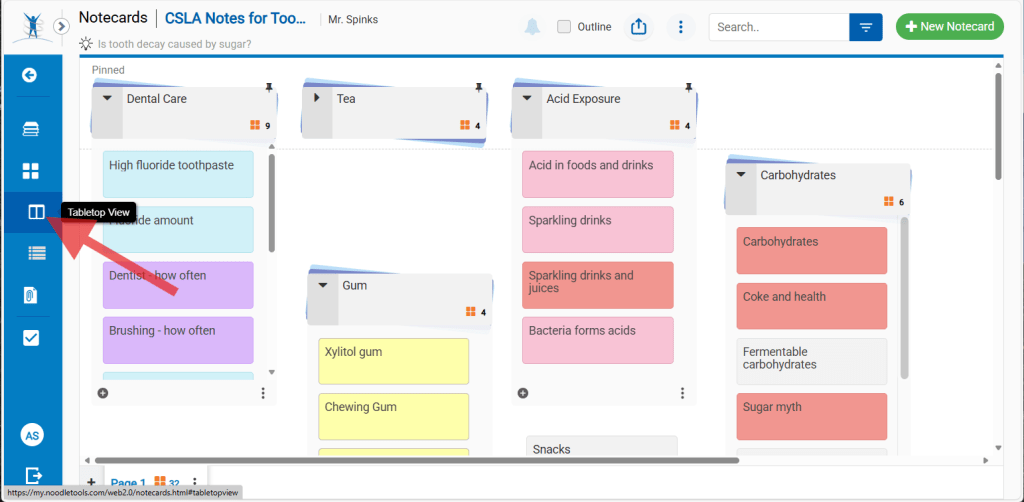
Tabletop View is an intuitive way to start organizing the notes and quotes you collect from your sources. To get started, click on “Tabletop View” under Notecards in the left navigation menu:
Notecard Tabletop View Explained (PDF)
Learn
These instructions from Noodletools explain some of the ways you can organize your notecards in Tabletop view:
- How to group and organize notecards (Tabletop location, pages, piles, tags and colors)
- How to create and merge notecard piles
- How to pin or unpin a notecard or notecard pile in the Tabletop View
- Why should I add tags to notecards?
- How to add tags, colors, and visual cues to a notecard
If you need to view or edit the contents of a notecard, just double-click it!
Practice
- Log in to your NoodleTools account
- Open this NoodleTools Sample Project
- Click “Copy Project” then “Copy”
- Return to your NoodleTools Project Page, refresh the page if needed, and open the project called “Tooth Decay Sample Project”
- Navigate to the Notecard Tabletop view and practice organizing the notecards:
- Drag the cards around, putting cards with similar topics near each other.
- Create a pile with all note cards related to dental care (brushing, etc.) and pin it to the top
- Add Tags to all the notecards with these topics (some may have multiple tags):
- brushing
- carbohydrates
- acidic_foods_drinks
- Use the search tool in the top right to select all notecards containing the word “bacteria.” Add a “bacteria” tag to these notecards.
- Repeat this process for “tea” and “gum.”
- Give a color code to all the notecards that mention beverages
Apply
After you have started taking collecting information from your sources in the form of NoodleTools notecards, open the Tabletop view and begin processing them in this way. As you collect more information, your organization can become more detailed.
Notecard Detail View
Detail View is a more structured way of viewing notecards. It also provides a quick way to view the contents of multiple notecards. Click on “Detail View” in the navigation menu to get started.
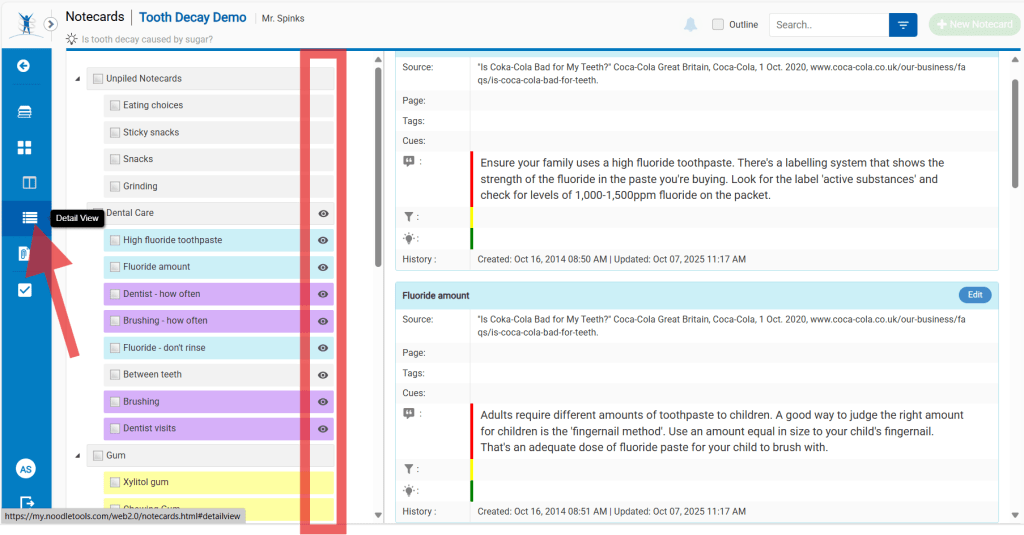
In Detail View, all your notecards are listed in the left column. They will be grouped by piles, if you have created any.
The contents of the notecards can be shown in the right column by clicking on the title of the notecard(s). Click again to hide. Click the title of a pile to show or hide all the notecards in that pile. (The “eye” icon indicates which notecards are currently visible in the right column.)
You can click the “Edit” button at the top right of a notecard to add tags or make other edits.
Notecard Detail View Explained (PDF)
Creating an Outline
To write a research paper, plan a presentation, or produce a video, you eventually have to decide the order in which you will present your information. The more sensibly your information flows, the more effective your communication will be. You might be trying to make the most convincing argument, tell a compelling story, or simply follow a required format, but the order matters.
The NoodleTools Outline feature can help you determine the exact order to present the information you have gathered during your research process. It can also help you identify areas where you don’t have enough information and need to do more research.
Learn
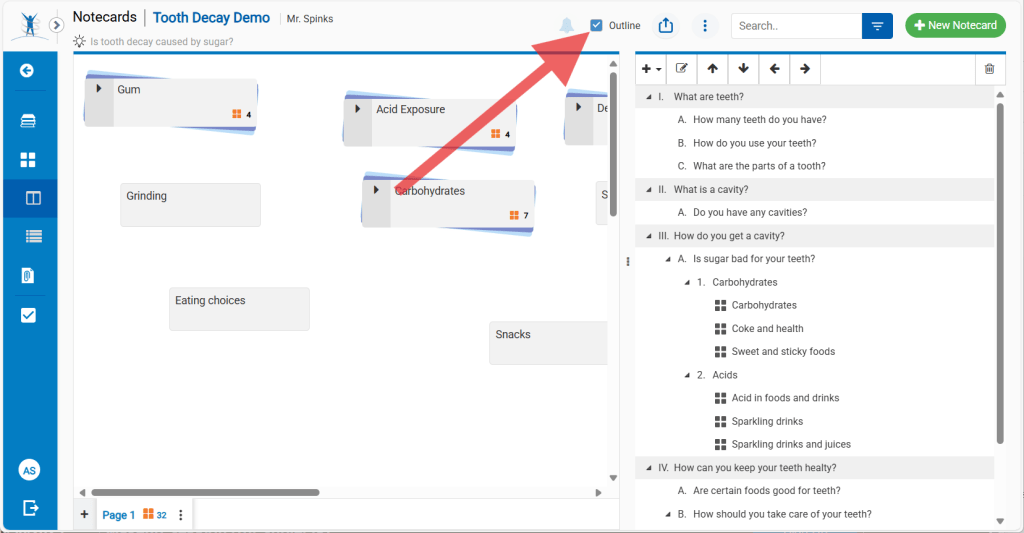
Starting from Desktop or Detail view, check the box in the top toolbar to open the outline view.
Creating / Editing the Outline Structure
Use the tools at the top of the outline to add, edit, and re-arrange headings and subheadings. Click on a section of the outline, then click on a tool:
- ➕ Add an outline heading or sub-heading
- 📝 Edit a heading title
- ⬆️⬇️ Move headings up and down in the list
- ⬅️➡️ Promote or demote headings
- 🗑️ Delete a heading and all its subheadings
More info: How to create an outline
Adding Notes to your Outline
This is the fun part! Just drag your notecards from the left side (Tabletop or Details view) into the outline under the appropriate topic heading.
If needed, use the arrows in the outline toolbar to move notecards up and down in the outline.
More info: How to add notecards to the outline
Practice
- Open the “Tooth Decay Sample Project” you created in the Tabletop View practice exercise.
- Navigate to the Notecards Tabletop View or Detail View and open the Outline.
- Add subheadings for “gum” and “bacteria.”
- Practice dragging notecards into the appropriate sections of the outline. Try it from both the Tabletop view and the Details view.
- Practice using the outline toolbar arrows to re-arrange outline sub-headings and change the order of notecards in the outline.
Apply
- Create an outline for your Noodletools project
- Drag your notecards into the outline in an order that makes sense for your project
- Examine the outline for topics and subtopics that lack supporting information. Go back and do more research in these areas!
Exporting Your Notes and Outline
The real value of using NoodleTools comes when you apply all that hard work you’ve done to creating a product, such as research paper. NoodleTools can export your notecards, your outline, or both to a variety of formats to make it easier to use them in creating your final project.
Learn
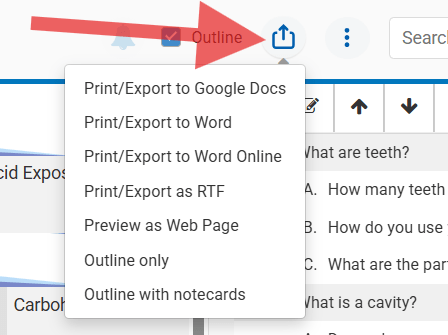
In Tabletop or Details view, click the Print/Export button on the toolbar to begin.
To export only your notecards, choose one of the “Print/Export” options. You can export all of your notecards or just a specific pile. You can also select which fields to include.
To export your outline, choose “Outline only” or “Outline with notecards.” You can then choose the format and which notecard fields to include.
PRO TIP: Not sure which Word option to choose? Here’s the difference:
- Print/Export to Word: Creates a temporary Word file that opens in as a view-only format in your browser. To use the file, you will need to download a copy to your computer.
- Print/Export to Word Online: Creates a NoodleTools folder in your Microsoft OneDrive, saves the file to that folder, and opens it in editable mode in your browser.
More Info: How to export or print the outline
Practice
- Open the “Tooth Decay Sample Project” you created in the Tabletop View practice exercise.
- Navigate to the Notecards Tabletop View or Detail View.
- Click the Print/Export icon, and choose “Outline with notecards”
- Chose Print/Export to Word Online and click Submit.
- Review this file to see how the notes are embedded within the outline (and in the exact order you specified in the outline). Take note of any fields you may want to exclude from the export next time (e.g., history/creator, tags, cues).
Apply
When you’re ready to begin writing a research paper from the information you have collected in a NoodleTools project, here’s a great way to make that writing process flow more easily:
- Create an outline in NoodleTools and use it to put all your information in the outline in the order you plan to write about it
- Export the “Outline with notecards” using the instructions above. Be sure to include sources and page numbers along with quotes, paraphrased info, and your own ideas.
- Open this file and save/rename it as the first draft of your research paper.
- Don’t worry about writing an introduction or conclusion yet. Just start at the beginning of the file, turning your outline headings and notes into sentences and paragraphs, being sure to formatting quotes correctly. Delete anything extraneous, but be sure to keep the page numbers and sources. (Or peek ahead to the next section and convert them to in-text citations).
This will become the body of your research paper. You’ll add an introduction and conclusion, refine it with transitions and connections between sections, and make lots of other revisions, but the hard part is done!