NoodleTools Expert | Part 3: Collecting Notes & Quotes
Extract the key information from your sources and document your own insights as you go, without ever losing track of where those ideas came from.
About Notecards
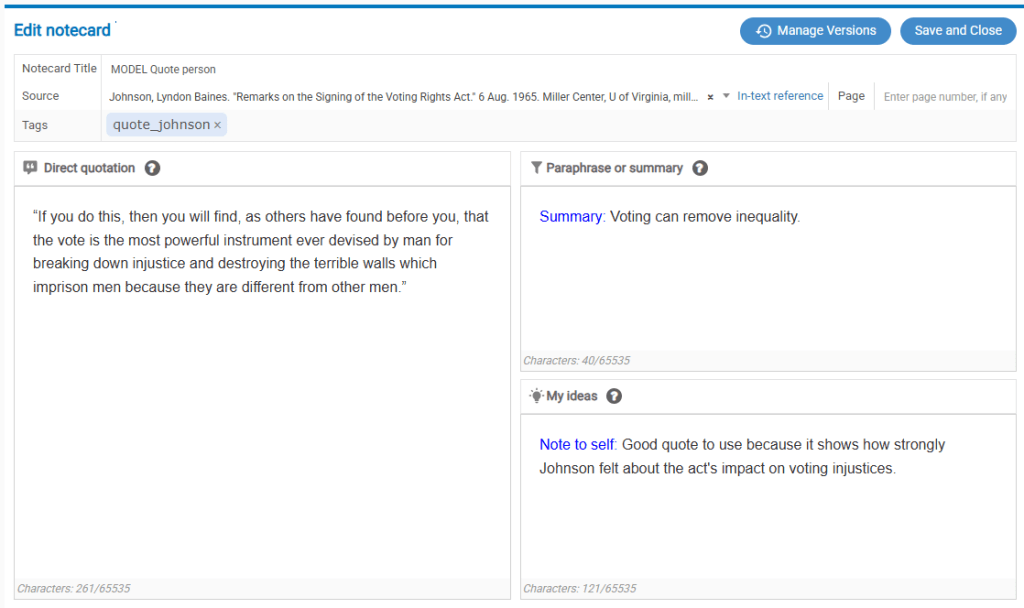
As you collect information from your research sources, you’ll use NoodleTools notecards to save and organize it.
And notecards are free, so use a ton of them! Put every individually-useful piece of information on its own note card.
Creating a New Note Card
TIP: Don’t create notecards from the NoodleTools Notecards screen! Always start on the Sources screen and create new notecards from there. That way you never forget to attach a note to its source!
- Open your NoodleTools project to the Sources page.
- Find your source in the list.
- Click on the “New” link (in the Notecards column) to the right of your source.

Adding Information to Note Cards
Here are some tips for each of the notecard fields is for:
Direct Quotation: Use this for text, images, or even video taken from your source. You can use the formatting tools to highlight words or sections, but otherwise you shouldn’t do any editing that wasn’t in the original source. Don’t add bold, italics, or underlining that wasn’t in the original, and don’t change any words or add any words. (More info: What should I enter in the “Direct Quotation” field on a notecard?)
Paraphrase or Summary: Use this field for ideas taken from your source that you put in your own words. (More info: What should I enter in the “Paraphrase/Summary” field on a notecard?)
My Ideas: This field is for your own observations, analysis, or notes to yourself about how this information relates to your project. (More info: What should I enter in the “My Ideas” field on a notecard?)
Notecard Title: Enter a very brief (4-5 word) summary of what the note card contains, just enough to recognize it when you are sorting and organizing your notes. (More info: How to choose a good title for a notecard)
Source: Verify that the correct source is selected.
Page: Be sure to enter the page number or page range the information came from, even if you just paraphrased it. For PDF sources, be sure you are entering the original page numbers (the ones on the PDF page) not the page number from the PDF reader. For example, if you are citing information from the last page of a 3-page PDF article that was published in pages 205-207 of a journal, you would enter “207” as the page number, not “3.”
Tags: You can use this field to add keyword tags to begin categorizing the information on your notecard. (Think of these like hashtags you can go back and search by later on.)